

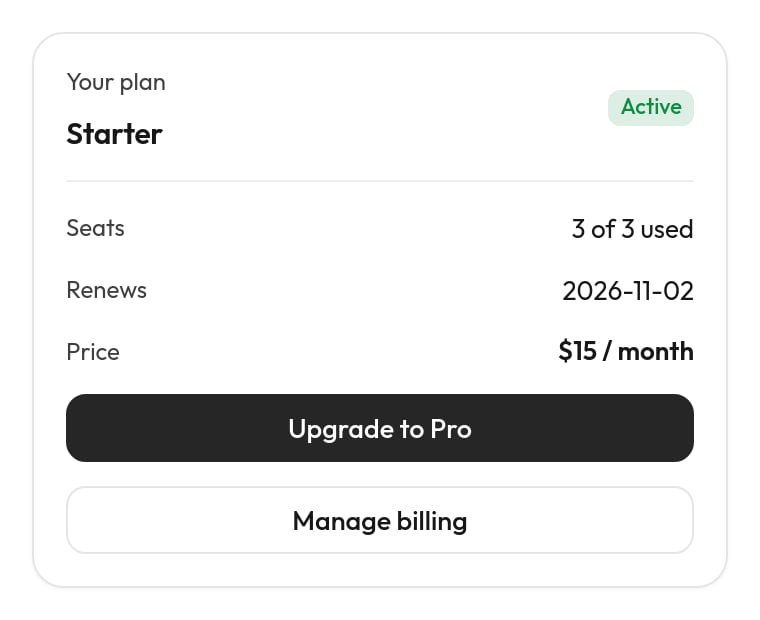
The account card for a customer on Starter, with the upgrade button from part 2.
About 30 minutes by hand, or a few minutes of reviewing with your AI.
The examples use a Node.js app with Express and a made-up
api.acme.com. Swap in your own framework, address and data: the shape of each step stays the same. Identify signed-in users has the token code for Python, Ruby and PHP too.The fast way: ask your AI
With the desk’s MCP server connected in the editor where your app’s code is open (Claude Code, Cursor, Codex), ask:Using the Jun MCP: let signed-in customers see their plan in the support chat. Set up identity verification for our app (server token +Your AI follows the same steps as below, with these tools:JunDesk.identify), add aGET /support/accounts/:userIdendpoint protected by a support key, then on the desk create amy_accountaction, anaccountcard (plan, status, seats, renewal, price, Manage billing link), a task and tests. Show me the card and the diff before anything goes live.
set_identity and jun://guide/identity (step 1), your code (steps 1–2), set_key, create_action, try_action (step 3), create_widget and preview_widget (step 4), create_task (step 5), test_chat, add_test_case, run_tests and check_identity_token (step 6). Read on to know what it should do, and to review its work.
Part 1: the account card
1
Identify signed-in customers
Turn it on. On the desk, Chat widget → Behaviour → Identify signed-in customers → Create identity secret (or over MCP: Never commit it, never send it to the browser.Sign a token for the signed-in user. Add an endpoint your pages call:Hand it to the chat in your app’s front end, after sign-in and on every page load while signed in; log out of the chat when the customer signs out:Server-rendered pages can skip the fetch and put the token on the snippet instead:
set_identity with turn: "on"). Copy the jis_… secret into your server’s environment:.env
server/jun.js
web/jun.js
data-user-token="<%= junToken %>".Check it: sign in to your app and open a page with the chat. On the desk, Visitors shows you with your name and a ✓. Over MCP, check_identity_token with a token from /api/jun-token answers Accepted and the {user.id} it will use. If the chat stays anonymous, the browser console says why ([Jun] identify failed: …; see Rejected tokens).2
Add an account endpoint for the desk
The desk calls your API from its server, so give it an endpoint that returns exactly what the card shows, protected by a key only the desk has.Make a long random key and put it in your server’s environment:Why this is safe: the endpoint trusts the
.env
server/support.js
:userId in the address because only the desk has the key, and the desk fills {user.id} only from a token your server signed. Return only what the customer may see: the answer goes into their chat. No card numbers, no internal notes, no other users.Try it: curl https://api.acme.com/support/accounts/u_123 -H "Authorization: Bearer $SUPPORT_API_KEY".3
Create the action
On the desk, Agent → Actions → New action. Say “Look up the signed-in customer’s own account: plan, seats, renewal date” and paste the curl command from step 2. The key in it is saved on the desk as
ACME_SUPPORT_KEY and the file only says {secrets.ACME_SUPPORT_KEY}. Then replace the u_123 in the address with {user.id}.The finished file:actions/my_account.yaml
Try it on the action’s page with a test customer: type the id of a real user from your app as the customer’s id, press Try it, and you should see your endpoint’s JSON. (Over MCP:
try_action with customer: { "id": "u_123" }.)4
Make the card
From the Try it result, press Show it as this widget: the desk makes a first card from your real answer and links it to the action. Restyle it with the widget’s AI tab (“a compact account card: plan as the title, a status badge, rows for seats, renewal and price, and a Manage billing button that opens billingUrl”), or paste this one into its Code → Whole file:The template, readable:
widgets/account.widget
- Every value goes through
| tojson, so a missing field isnullinstead of broken JSON. - Manage billing is an
open_urlbutton: it opens the link in the customer’s browser and is never sent to the desk. - The states let you check the card in each case: pick Starter and Past due in the preview (over MCP:
preview_widgetwithstate, light and dark). - The summary is the line the chat shows when it folds the card away: Pro plan · active.
widget: account to the action, if Show it as this widget didn’t already.5
Write the task
Agent → Tasks → New task: “The customer asks about their plan, billing, seats, renewal date, or upgrading.” The finished file:Step 2 names
tasks/account.md
@upgrade_plan, which you’ll add in part 2. Until then, leave step 2 out, or the task’s page warns that the action doesn’t exist.6
Test it, then save
In the test chat. On the task’s Test tab, set the test customer’s id to a real user from your app, and ask “What plan am I on?” The AI calls Run them with mock tools:
my_account and the card appears with that user’s data. Then clear the customer and ask again: the AI should ask you to sign in, with no card. (Over MCP: test_chat with and without customer.)As test cases. Test cases run as an anonymous visitor, so they use the action’s mock:tests/account.yaml
jun eval --mock-tools with the CLI, or run_tests with mockTools: true over MCP. The desk’s Run tests button calls actions for real as an anonymous visitor, so my_account fails there by design.Save on the Agent page. It’s live.On your app. Sign in, open the chat, ask “what plan are we on?” The card shows your plan. In the desk’s inbox the conversation has your verified contact (✓) and, under the AI’s message, the my_account call in the audit log.Part 2: an upgrade button
Now let a customer on Starter upgrade from the card. The button runs an action directly: pressing it is the customer’s yes, so there’s no extra question, and the action answers the press itself with a line instead of an AI reply.1
Add a plan-change endpoint
server/support.js
2
Add the action
actions/upgrade_plan.yaml
{user.id}again: the change can only ever go to the signed-in account.enumkeeps the AI (and the button) to plans that exist.widget_done/widget_failedanswer a button press directly: on success the card folds to “You’re on Pro now…”; on an error it stays open with the failed line.
3
Add the button to the card
In the template, put this before the Manage billing button, so it shows only on Starter:Or ask the widget’s AI: “On Starter only, add a primary Upgrade to Pro button above Manage billing that runs upgrade_plan with plan pro.” Details → Connected should now say the button runs
upgrade_plan, with no warning about a missing input (plan comes from the payload).Preview the Starter state: the button is there. Preview the default (Pro): it’s not.4
Put step 2 back in the task, test and save
Add step 2 of the task (above) if you left it out. Then in the test chat, as a test customer on Starter: ask “what plan am I on?”, press Upgrade to Pro. With real changes off the press is pretended and the card folds to the done line; nothing changes in your system.Add a test that the AI never upgrades without a yes:Save. It’s live.
tests/account.yaml
Why it’s safe
- The account comes from your app’s signature.
{user.id}is filled only from a token your server signed with the identity secret. A visitor who isn’t signed in has no{user.id}, somy_accountandupgrade_plandon’t run for them at all. Typing “I’m user u_123” changes nothing. - The AI never chooses the account. Neither action has an input for it, and the task tells the AI not to look anyone up by what they type.
- Your endpoint has the final say. It checks the desk’s key, and still applies your own rules (who may change the plan, which plans exist).
- A change needs a yes. The AI must say what changes and wait for a clear yes; a button press is that yes, for exactly the plan on the button.
- Everything is on record. Each call is in the conversation’s audit log on the desk, with what was sent and what came back (keys masked).
When it doesn’t work
Identify signed-in users
Claims, merging and user secrets in detail.
Widgets
Every component, button type and template feature.
Actions
Placeholders, keys, Try it and the audit log.
Connect your AI (MCP)
Build recipes like this one with one request.